
Compress File Size

|
Full Name |
Compress File Size |
|
Tools |
50+ |
|
Location |
Pakistan |
|
Release Date |
2025-10-11 11:46:45 |
|
Visitor |
50k Per Month |
|
Age |
9 Month |
Active Users
Years Active
Best Tool
Drag & drop image
or browse your device
Supports WEBP, JPEG, PNG up to 25MBSet configuration and click compress to see result.
What is meant by Compress File Size
Compressing a file means reducing the size of the file so that it takes up less digital space on your computer, mobile phone or cloud drive. This process works by removing unnecessary or repetitive data from a file, or by using clever mathematical methods to store the same information more efficiently.
There are two basic methods:
lossless compression
lossy compression
The Evolution of the Compress File Size
Early Days (1970s–1990s)
Modern Days (2000s–Present)
How to Compress your Image Size
Follow these Steps
1st
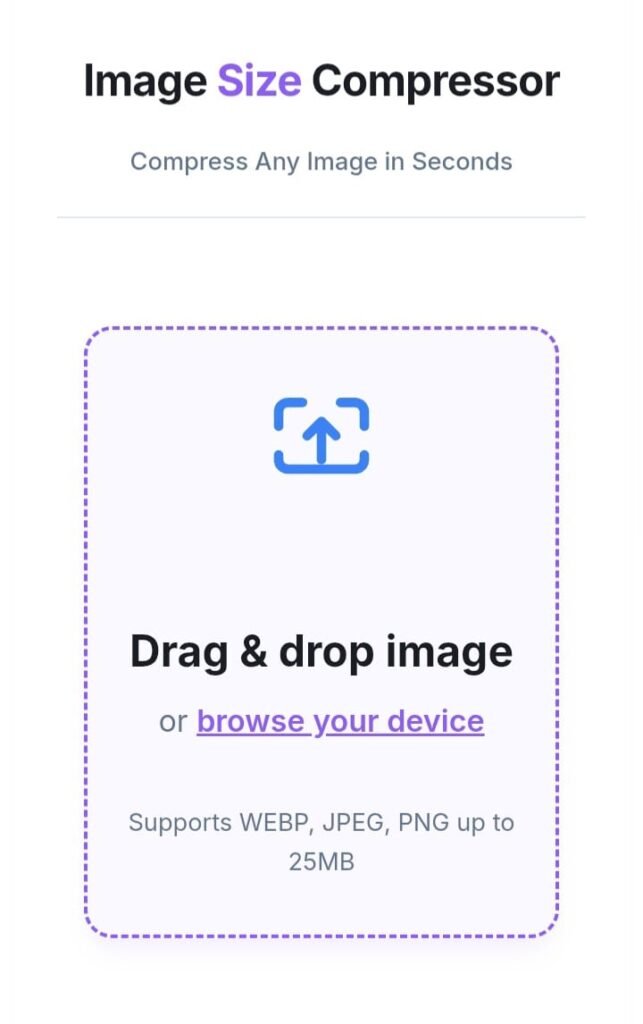
Reach our site and scroll our main page after Hero section our dear visitors will look a section for selecting image from gallery or other sources.
2nd
Click on section named ”Drag & drop image”. After this action select image that you want to compress.

3rd
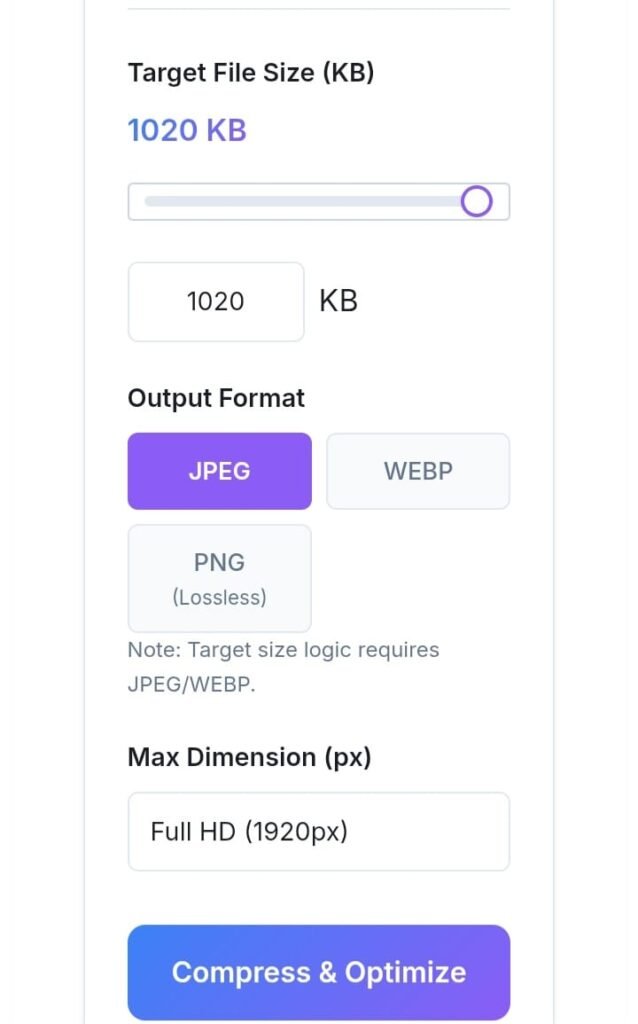
Adjust your ”Target File Size”, ”Output Format”, and ”Max Dimension”. After adjustment Click on ”Compress & Optimize”.
4th
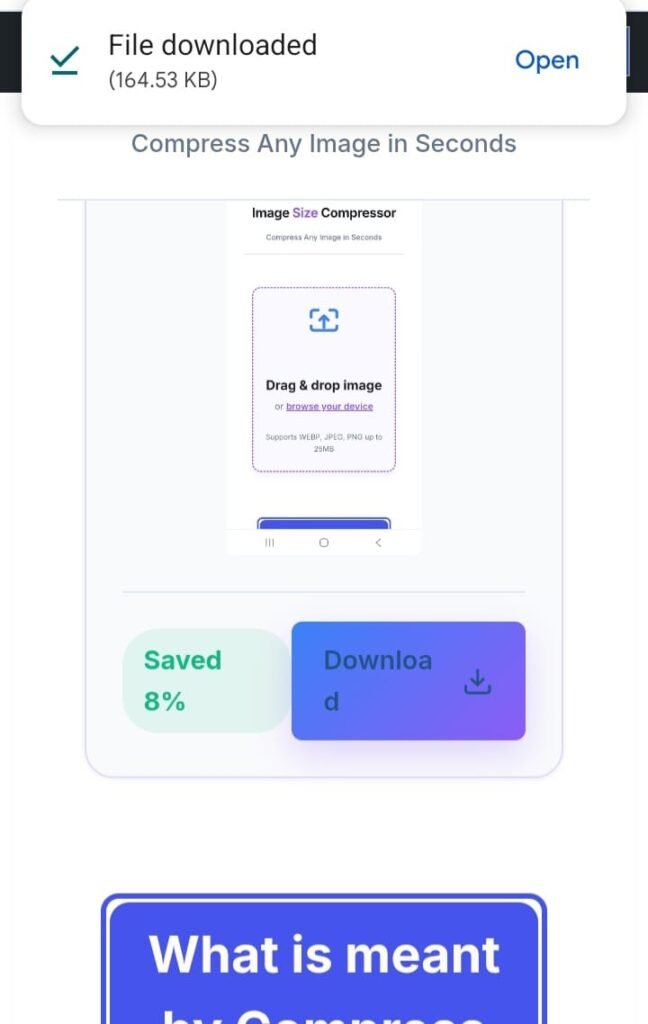
End of the action you will see ”Download” button on right corner. You will download easily in your mobiles or computers.
Pros and Cons
Pros
Cons
Our Tools
Image Crop
Image Crop is a fast, intuitive tool designed to help you. Whether you are a beginner or a pro, it streamlines your workflow so you can save time and focus on what matters most.
Size Reduce In Kb
Size Reduce In Kb is a fast, intuitive tool designed to help you. Whether you are a beginner or a pro, it streamlines your workflow so you can save time and focus on what matters most.
Business Loan Calculator
Business Loan Calculator is a fast, intuitive tool designed to help you. Whether you are a beginner or a pro, it streamlines your workflow so you can save time and focus on what matters most.
Credit Card Payoff Calculator
Credit Card Payoff Calculator is a fast, intuitive tool designed to help you. Whether you are a beginner or a pro, it streamlines your workflow so you can save time and focus on what matters most.
Robots.txt Generator
Robots.txt Generator is a fast, intuitive tool designed to help you. Whether you are a beginner or a pro, it streamlines your workflow so you can save time and focus on what matters most.
Meta Tag Generator
Meta Tag Generator is a fast, intuitive tool designed to help you. Whether you are a beginner or a pro, it streamlines your workflow so you can save time and focus on what matters most.
SERP Simulator
SERP Simulator is a fast, intuitive tool designed to help you. Whether you are a beginner or a pro, it streamlines your workflow so you can save time and focus on what matters most.
Keyword Density Checker
Keyword Density Checker is a fast, intuitive tool designed to help you. Whether you are a beginner or a pro, it streamlines your workflow so you can save time and focus on what matters most.
UTM Link Builder
UTM Link Builder is a fast, intuitive tool designed to help you. Whether you are a beginner or a pro, it streamlines your workflow so you can save time and focus on what matters most.
Privacy Policy Page Generator
Privacy Policy Page Generator is a fast, intuitive tool designed to help you. Whether you are a beginner or a pro, it streamlines your workflow so you can save time and focus on what matters most.
Percentage Calculator
Percentage Calculator is a fast, intuitive tool designed to help you. Whether you are a beginner or a pro, it streamlines your workflow so you can save time and focus on what matters most.
Crypto Dollars Planner
Crypto Dollars Planner is a fast, intuitive tool designed to help you. Whether you are a beginner or a pro, it streamlines your workflow so you can save time and focus on what matters most.
Property Tax Estimator
Property Tax Estimator is a fast, intuitive tool designed to help you. Whether you are a beginner or a pro, it streamlines your workflow so you can save time and focus on what matters most.
Advanced Expense Tracker
Advanced Expense Tracker is a fast, intuitive tool designed to help you. Whether you are a beginner or a pro, it streamlines your workflow so you can save time and focus on what matters most.
Compound Interest Calculator
Compound Interest Calculator is a fast, intuitive tool designed to help you. Whether you are a beginner or a pro, it streamlines your workflow so you can save time and focus on what matters most.
Retainer Calculator
Retainer Calculator is a fast, intuitive tool designed to help you. Whether you are a beginner or a pro, it streamlines your workflow so you can save time and focus on what matters most.
Open Graph Tag Generator
Open Graph Tag Generator is a fast, intuitive tool designed to help you. Whether you are a beginner or a pro, it streamlines your workflow so you can save time and focus on what matters most.
Advanced Sitemap.xml Generator
Advanced Sitemap.xml Generator is a fast, intuitive tool designed to help you. Whether you are a beginner or a pro, it streamlines your workflow so you can save time and focus on what matters most.
Dust Remover from Any Speaker
Dust Remover from Any Speaker is a fast, intuitive tool designed to help you. Whether you are a beginner or a pro, it streamlines your workflow so you can save time and focus on what matters most.
Eject Water
Eject Water is a fast, intuitive tool designed to help you. Whether you are a beginner or a pro, it streamlines your workflow so you can save time and focus on what matters most.
Remove Rain Drop
Remove Rain Drop is a fast, intuitive tool designed to help you. Whether you are a beginner or a pro, it streamlines your workflow so you can save time and focus on what matters most.
Collage Images Maker
Collage Images Maker is a fast, intuitive tool designed to help you. Whether you are a beginner or a pro, it streamlines your workflow so you can save time and focus on what matters most.
FD Saving Calculator
FD Saving Calculator is a fast, intuitive tool designed to help you. Whether you are a beginner or a pro, it streamlines your workflow so you can save time and focus on what matters most.
ROI Calculator
ROI Calculator is a fast, intuitive tool designed to help you. Whether you are a beginner or a pro, it streamlines your workflow so you can save time and focus on what matters most.
Students Loan Calculator
Students Loan Calculator is a fast, intuitive tool designed to help you. Whether you are a beginner or a pro, it streamlines your workflow so you can save time and focus on what matters most.
Mortgage Payment Estimator
Mortgage Payment Estimator is a fast, intuitive tool designed to help you. Whether you are a beginner or a pro, it streamlines your workflow so you can save time and focus on what matters most.
Images to PDF
Images to PDF is a fast, intuitive tool designed to help you. Whether you are a beginner or a pro, it streamlines your workflow so you can save time and focus on what matters most.
AdSense Earning Predictor
AdSense Earning Predictor is a fast, intuitive tool designed to help you. Whether you are a beginner or a pro, it streamlines your workflow so you can save time and focus on what matters most.
HTML and CSS Minifier
HTML and CSS Minifier is a fast, intuitive tool designed to help you. Whether you are a beginner or a pro, it streamlines your workflow so you can save time and focus on what matters most.
Binary to Text
Binary to Text is a fast, intuitive tool designed to help you. Whether you are a beginner or a pro, it streamlines your workflow so you can save time and focus on what matters most.
Text to Binary
Text to Binary is a fast, intuitive tool designed to help you. Whether you are a beginner or a pro, it streamlines your workflow so you can save time and focus on what matters most.
DIFF Checker
DIFF Checker is a fast, intuitive tool designed to help you. Whether you are a beginner or a pro, it streamlines your workflow so you can save time and focus on what matters most.
QR Code Generator
QR Code Generator is a fast, intuitive tool designed to help you. Whether you are a beginner or a pro, it streamlines your workflow so you can save time and focus on what matters most.
Secure Password Generator
Secure Password Generator is a fast, intuitive tool designed to help you. Whether you are a beginner or a pro, it streamlines your workflow so you can save time and focus on what matters most.
Dummy Text Generator
Dummy Text Generator is a fast, intuitive tool designed to help you. Whether you are a beginner or a pro, it streamlines your workflow so you can save time and focus on what matters most.
Words Counter
Words Counter is a fast, intuitive tool designed to help you. Whether you are a beginner or a pro, it streamlines your workflow so you can save time and focus on what matters most.
Advanced Case Converter
Advanced Case Converter is a fast, intuitive tool designed to help you. Whether you are a beginner or a pro, it streamlines your workflow so you can save time and focus on what matters most.
Duplicate Lines Remover
Duplicate Lines Remover is a fast, intuitive tool designed to help you. Whether you are a beginner or a pro, it streamlines your workflow so you can save time and focus on what matters most.
Online Notepad
Online Notepad is a fast, intuitive tool designed to help you. Whether you are a beginner or a pro, it streamlines your workflow so you can save time and focus on what matters most.
JPG to PNG Converter
JPG to PNG Converter is a fast, intuitive tool designed to help you. Whether you are a beginner or a pro, it streamlines your workflow so you can save time and focus on what matters most.
PNG to JPG Converter
PNG to JPG Converter is a fast, intuitive tool designed to help you. Whether you are a beginner or a pro, it streamlines your workflow so you can save time and focus on what matters most.
Advanced Images Compressor
Advanced Images Compressor is a fast, intuitive tool designed to help you. Whether you are a beginner or a pro, it streamlines your workflow so you can save time and focus on what matters most.
Images Resizer
Images Resizer is a fast, intuitive tool designed to help you. Whether you are a beginner or a pro, it streamlines your workflow so you can save time and focus on what matters most.
Colors Picker
Colors Picker is a fast, intuitive tool designed to help you. Whether you are a beginner or a pro, it streamlines your workflow so you can save time and focus on what matters most.
PDF Page Extractor
PDF Page Extractor is a fast, intuitive tool designed to help you. Whether you are a beginner or a pro, it streamlines your workflow so you can save time and focus on what matters most.
Calories Calculator
Calories Calculator is a fast, intuitive tool designed to help you. Whether you are a beginner or a pro, it streamlines your workflow so you can save time and focus on what matters most.
Typing Speed Test
Typing Speed Test is a fast, intuitive tool designed to help you. Whether you are a beginner or a pro, it streamlines your workflow so you can save time and focus on what matters most.
Pomodoro Timer
Pomodoro Timer is a fast, intuitive tool designed to help you. Whether you are a beginner or a pro, it streamlines your workflow so you can save time and focus on what matters most.
Speaker Cleaner
Speaker Cleaner is a fast, intuitive tool designed to help you. Whether you are a beginner or a pro, it streamlines your workflow so you can save time and focus on what matters most.
Car Insurance Estimator
Car Insurance Estimator is a fast, intuitive tool designed to help you. Whether you are a beginner or a pro, it streamlines your workflow so you can save time and focus on what matters most.
Support Files
WEBP
People can select any format and can select WEBP format. Our tool also support WEBP files easily and can process to generate result in seconds.
JPEG
Our dear visitors can select JPEG format. After selection of JPEG format, our tool will compress file size in seconds.
PNG
Our 100% Free tools can support PNG file and process easily to compress file size and give result according to our need and instructions.
Our Marketing Sources
SEO
Our hardworking team also try to get more result from SEO. Our site contains minimum 50+ tools and nowadays thinking about writing articles to get more traffic. Our dear publisher Mubashir Raza also make efforts to bring more traffic.
Our team are also making Instagram accounts and try to rank them to drive traffic in our website. We use this technique to aware the people about our site and tell them advantages of our site.
Our team also use Facebook pages and also buy pages which can drive traffic in our site and aware the advantages of our tools.